Ultimate Jowua Phone Mount Install on Our New Tesla Model Y Performance
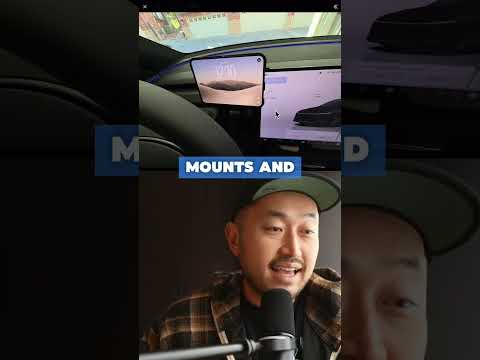
Hey everyone, DennisCW here! We just picked up our brand new Tesla Model Y Performance, and the very first accessory I grabbed – like I do for all our Teslas – is the Jowua phone mount. This isn't just any mount; it's got active cooling, MagSafe charging at 15W, and insane adjustability. You can flip it vertical or horizontal, with 360-degree rotation and an extendable arm. Let's dive into why this is my absolute favorite and how I installed it step-by-step.
Why the Jowua Phone Mount is a Must-Have for Tesla Owners
I've tried tons of phone mounts, but the Jowua stands out for its functionality.
- Active cooling fans keep your phone from overheating during long drives or Full Self-Driving (FSD) sessions.
- 15W MagSafe wireless charging for super-fast power-ups.
- Full adjustability: 360° rotation, extendable arm, and positioning options to get the perfect view.
It's perfect for navigation, FSD visualization, or even binge-watching on road trips (safely, of course!).
Step-by-Step Installation Guide
Installation is a breeze – no tools needed beyond some patience for the cable routing. Here's how I did it on the Model Y:
-
Route the Cable: Start by running the power cable along the driver's side A-pillar and down to the rear USB ports. This keeps your front ports free and powers the fans + charging. Tuck it neatly into the trim – super simple on a new Tesla.
-
Prep the Mount: Peel off the 3M VHB adhesive backing (clean the surface first if needed, but our new Model Y was spotless). Extend the arm fully counterclockwise so it aligns with the clamp.
-
Position It Perfectly: Mount it in the upper left corner of the dashboard for the best FSD/nav view. Push hard to set the adhesive. Slide the arm all the way left for maximum support – these phones are heavy!
-
Secure with Clamp & Nut: Push the suction-style clamp down onto the dash for extra stability. Tighten the nut at the base for up/down/left/right adjustments.
-
Connect Power: Plug the cable into the back of the mount and route it to the rear USB. Boom – fans spin up, and charging kicks in instantly.
 Pro tip: The repositionable 3M adhesive makes it easy to tweak placement if needed.
Real-World Test & Adjustability Demo
Pop your MagSafe-equipped iPhone on, and it's game-changing:
- Vertical mode for maps and FSD viz.
- Horizontal flip for road trip Netflix or landscape nav.
- Easy Entry mode compatible – steering wheel tilts down without interference.
- Sleep mode activates perfectly, and it stays cool even on long drives.
You can extend, rotate, and reposition on the fly. No sagging, no wobble – rock solid!

Final Thoughts & Where to Get Yours
This mount elevates your Tesla experience instantly. If you're running FSD, nav-heavy routes, or just hate dead phones, grab one now. Check the link in the video description for a discount and free shipping from Jowua!
What accessories are you adding to your Tesla? Drop a comment below, and subscribe for more installs, reviews, and Tesla tips. 🚀
DennisCW – Keeping it real with Tesla life.